Wireshark Basics
We can filter a particular conversation using Conversation filter.
Profiles
- >Specific profiles for each type of work that needs to be performed.
- >Useful if we want to use one configuration for one type of analysis and another configuration for another type of analysis.
Time can be adjusted using the view tab. One of the useful ways to display time can be Seconds since previous displayed packet. This can be used to find packet delays.
1. Adding an extra time column
Edit > Preferences > Columns > Add
2. Saving filters for future
- >icon on top right > Add name and filter > Save
3. Adjusting colors
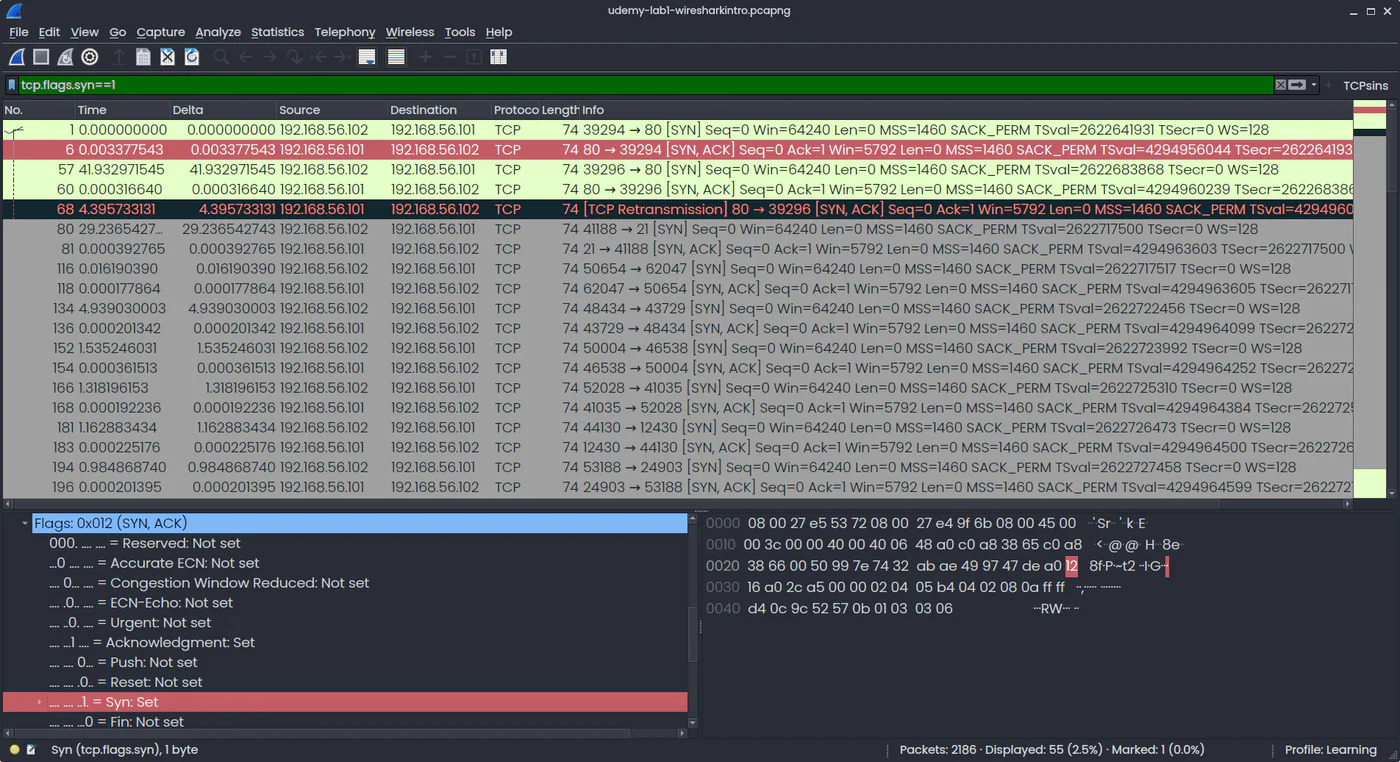
Let's color all TCP SYN packets:
tcp.flags.syn==1
View > Coloring rules > Add
The list will be in order of priority, i.e. 1st is the highest priority, 2nd is less priority.
Note: if we ever need to figure out a filter command, we can select the required option and Wireshark will display the filter on the bottom left.
4. Change layout
Edit > Preferences > Layouts
5. Add values as column
Right-click on the value > Add as column
We can also remove any column temporarily by clicking on the columns.
Colour every TCP SYN with the display filter . The filter for a selected packet is shown in the bar at the bottom, and extra columns are added under Edit, Preferences, .